
Guía rápida de Object Storage
Learn how to manage your Plenit Object Storage subscription, control quota, manage users, organize structure, and connect S3 clients.
Manage your Plenit Object Storage subscription by reviewing the bucket, controlling access, organizing the structure, and collecting the S3 connection details you need for external clients.
Before you start
- Deploy an Object Storage bucket in Plenit. If you have not created one yet, follow How to deploy an Object Storage bucket in Plenit.
- Sign in to the Plenit platform.
- Open the Dashboard and locate the Object Storage subscription card.
Each Object Storage subscription in Plenit includes one bucket. You manage quota, access, structure, and S3 connection details from that subscription.
Who should use this guide
- SysAdmin: Manage quota, users, and folder structure.
- CTO: Review how the service is organized and what administrators can control.
- Developer: Retrieve the S3 service URL, Access key, and Secret key for an S3-compatible client.
Manage your Object Storage subscription
1. Open the subscription overview
From the Dashboard, select the Object Storage subscription card.
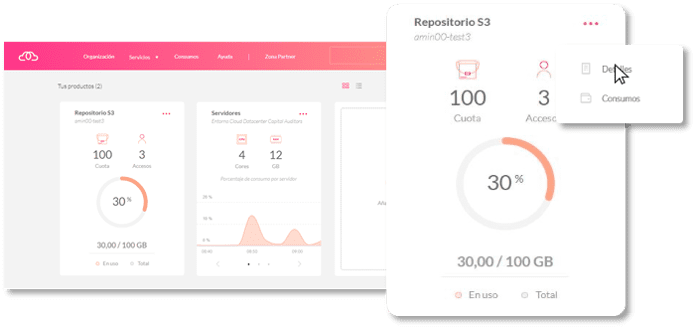
When you open the subscription, you land on the Summary section. Use it to confirm that you are working in the correct repository before making changes.
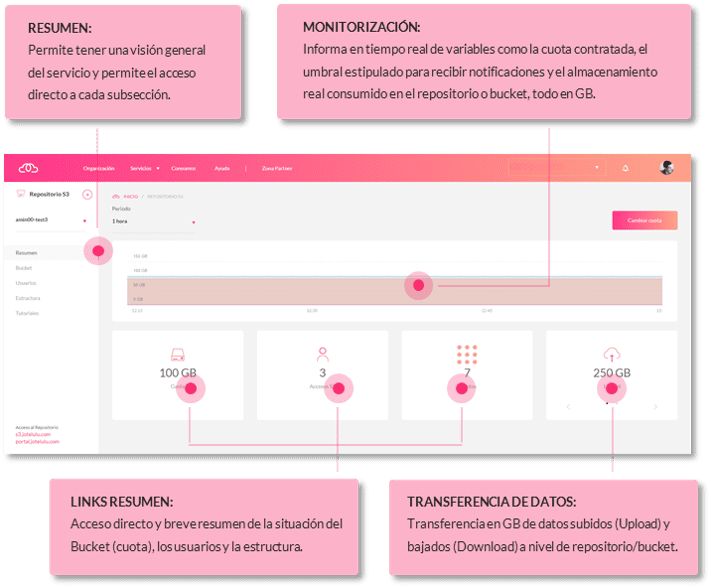
Validate: You can see the subscription overview and identify the bucket you want to manage.
Ten bajo control tu Almacenamiento de Objetos:
Ten bajo control tu Almacenamiento de Objetos:
2. Review quota, versioning, and lifecycle rules
Open the Bucket subsection to manage the storage configuration.
In this section, you can:
- Review the quota assigned to the service.
- Adjust the quota when you need more or less capacity.
- Configure rules to receive notifications.
- Keep object versions.
- Remove objects or incomplete uploads automatically.
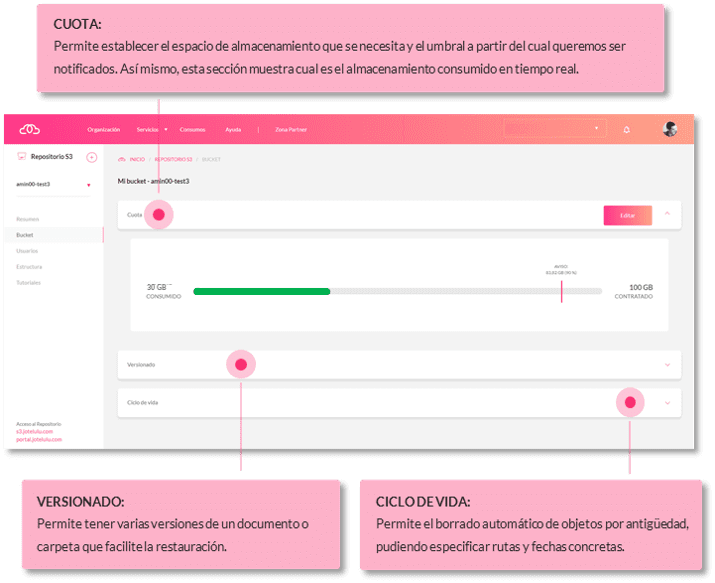
Validate: The Bucket subsection shows the current quota and the rules that apply to stored objects and incomplete uploads.
Gestiona los accesos al Almacenamiento de Objetos:
3. Manage users and access
Open the Users subsection to control who can use the repository.
In this section, you can:
- Review the status of each user or access.
- Identify the repository owner.
- Enable new access.
- Create additional users when needed.
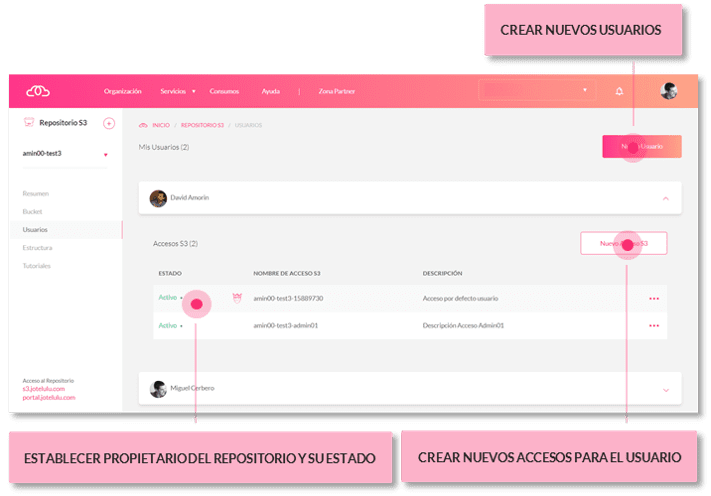
Validate: You can see the current users, confirm the owner, and verify which accesses are active.
Organiza la información y tenla más accesible:
Organiza la información y tenla más accesible:
4. Organize the storage structure
Open the Structure section to work with the repository like a file explorer.
Use this view to create and maintain a folder structure that matches how your team stores and finds data. A clear structure helps administrators locate information faster when they need it.
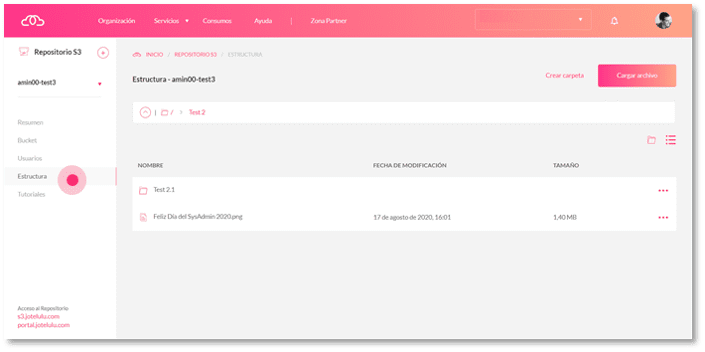
Validate: The folder structure reflects the organization you want to use for your stored data.
Integración con clientes S3:
Integración con clientes S3:
5. Retrieve S3 connection details for external clients
Use the repository details together with the credentials available in each user access to connect external S3-compatible tools, such as a backup client.
Collect these values:
- S3 service URL
- Access key
- Secret key
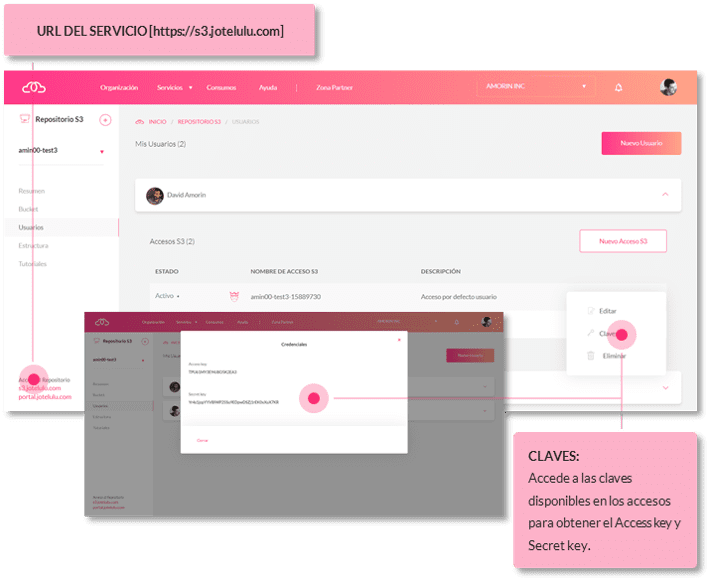
reat the Access key and Secret key as sensitive credentials. Share them only with the user or system that needs to connect to the repository.
Validate: Your external S3 client has the service URL and credentials required to connect to the repository.
Conclusiones y/o próximos pasos:
Validation checklist
Use this checklist after you finish:
- You can open the correct Object Storage subscription from the Dashboard.
- You reviewed the Summary section.
- You confirmed or adjusted quota and lifecycle settings in Bucket.
- You verified the required users and accesses in Users.
- You organized the repository in Structure.
- You collected the S3 service URL, Access key, and Secret key for integrations.
Roll back or update a change
If you need to reverse a configuration change, return to the section where you made it:
- Go back to Bucket to update quota, notifications, versioning, or automatic deletion rules.
- Go back to Users to review access status, ownership, or additional users.
- Go back to Structure to reorganize how information is grouped.
Optional: Troubleshooting
I cannot find the Object Storage service in the dashboard
Make sure the bucket was deployed successfully. In Plenit, deploying an Object Storage bucket creates the subscription card that you manage from the dashboard.
I cannot connect an external S3 client
Verify that you copied all three values from the service correctly:
- S3 service URL
- Access key
- Secret key
If one of these values is missing or incorrect, the external client will not connect to the repository.
Updated 6 days ago